 |
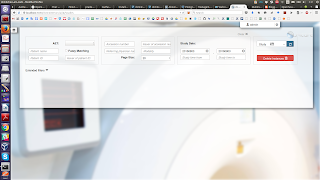
| DCM4CHEE Admin Page. |
DCM4CHEE installation through Docker was the smoothest installation/configuration I did recently. Despite its complicated setting environment with WildFly, OpenLDAP, and PostgreSQL, everything was simple and to the point, thanks to Docker and the compact documentation provided by DCM4CHEE.
This blog post is based on the
wiki page, which is in itself well written.
Add docker host to the /etc/hosts file
127.0.0.1 dockerhost
Make sure that the Docker is started.
sudo service docker start
Run OpenLDAP Server
sudo docker run --name slapd \
-p 389:389 \
-e LDAP_BASE_DN=dc=dcm4che,dc=org \
-e LDAP_ORGANISATION=dcm4che.org \
-e LDAP_ROOTPASS=secret \
-e LDAP_CONFIGPASS=secret \
-e DEVICE_NAME=dcm4chee-arc \
-e AE_TITLE=DCM4CHEE \
-e DICOM_HOST=dockerhost \
-e DICOM_PORT=11112 \
-e HL7_PORT=2575 \
-e SYSLOG_HOST=logstash \
-e SYSLOG_PORT=8512 \
-e SYSLOG_PROTOCOL=UDP \
-e STORAGE_DIR=/storage/fs1 \
-v /var/local/dcm4chee-arc/ldap:/var/lib/ldap \
-v /var/local/dcm4chee-arc/slapd.d:/etc/ldap/slapd.d \
-d dcm4che/slapd-dcm4chee:5.5.2
Run PostgreSQL Server
sudo docker run --name postgres \
-p 5432:5432 \
-e POSTGRES_DB=pacsdb \
-e POSTGRES_USER=pacs\
-e POSTGRES_PASSWORD=pacs \
-v /var/local/dcm4chee-arc/db:/var/lib/postgresql/data \
-d dcm4che/postgres-dcm4chee:5.2
Run DCM4CHEE Archive 5
We choose version with secured UI and secured RESTful services (Tag Name: 5.5.2-secure).
sudo docker run --name dcm4chee-arc \
-p 8080:8080 \
-p 9990:9990 \
-p 11112:11112 \
-p 2575:2575 \
-e LDAP_BASE_DN=dc=dcm4che,dc=org \
-e LDAP_ROOTPASS=secret \
-e LDAP_CONFIGPASS=secret \
-e DEVICE_NAME=dcm4chee-arc \
-e POSTGRES_DB=pacsdb \
-e POSTGRES_USER=pacs\
-e POSTGRES_PASSWORD=pacs \
-e JAVA_OPTS="-Xms64m -Xmx512m -XX:MetaspaceSize=96M -XX:MaxMetaspaceSize=256m -Djava.net.preferIPv4Stack=true -Djboss.modules.system.pkgs=org.jboss.byteman -Djava.awt.headless=true" \
-e WILDFLY_CHOWN="/opt/wildfly/standalone /storage" \
-v /var/local/dcm4chee-arc/wildfly:/opt/wildfly/standalone \
-v /var/local/dcm4chee-arc/storage:/storage \
--link slapd:ldap \
--link postgres:db \
-d dcm4che/dcm4chee-arc-psql:5.5.2-secure
Make sure that no port conflicts:
sudo netstat -anp | grep
Due to failed attempts, there may be conflicts in starting a Docker container.
docker: Error response from daemon: Conflict. The name "/dcm4chee-arc" is already in use by container 537bd21a41bb01680ea598ad35a33a1cc07d1d222dc75605c64398c7a43fb73c. You have to remove (or rename) that container to be able to reuse that name..
Find and remove the contaianer and re-attempt if this happens.
sudo docker ps -a
537bd21a41bb dcm4che/dcm4chee-arc-psql:5.5.2-secure "/docker-entrypoint.s" 3 minutes ago Created dcm4chee-arc
sudo docker rm 537bd21a41bb
or just,
sudo docker rm slapd
sudo docker rm postgres
sudo docker rm dcm4chee-arc
Check the status of the Docker containers after everything has started
sudo docker ps -a
CONTAINER ID IMAGE COMMAND CREATED STATUS PORTS NAMES
6cbfcb336f65 dcm4che/dcm4chee-arc-psql:5.5.2-secure "/docker-entrypoint.s" 6 seconds ago Up 3 seconds 0.0.0.0:2575->2575/tcp, 0.0.0.0:8080->8080/tcp, 0.0.0.0:9990->9990/tcp, 0.0.0.0:11112->11112/tcp dcm4chee-arc
a5cf7e96ba0e dcm4che/postgres-dcm4chee:5.2 "/docker-entrypoint.s" 8 minutes ago Up 8 minutes 0.0.0.0:5432->5432/tcp postgres
43d3eb7e1237 dcm4che/slapd-dcm4chee:5.5.2 "/docker-entrypoint.s" 25 minutes ago Up 25 minutes 0.0.0.0:389->389/tcp slapd
Web Service URLs
Archive UI: http://localhost:8080/dcm4chee-arc/ui - if secured, login with
Username Password Role
user user user
admin admin user + admin
Keycloak Administration Console: http://localhost:8080/auth, login with Username: admin, Password: admin.
Wildfly Administration Console: http://localhost:9990, login with Username: admin, Password: admin.
Kibana UI: http://localhost:5601
DICOM QIDO-RS Base URL: http://localhost:8080/dcm4chee-arc/aets/DCM4CHEE/rs
DICOM STOW-RS Base URL: http://localhost:8080/dcm4chee-arc/aets/DCM4CHEE/rs
DICOM WADO-RS Base URL: http://localhost:8080/dcm4chee-arc/aets/DCM4CHEE/rs
DICOM WADO-URI: http://localhost:8080/dcm4chee-arc/aets/DCM4CHEE/wado
Check the logs of the containers
sudo docker logs 6cbfcb336f65
Restart a container
sudo docker restart 6cbfcb336f65
Entering a containerized instance for Debugging, etc
sudo docker exec -i -t dcm4chee-arc /bin/bash
*********************
Optionally, to store the log and audit messages in Elastic search, run these additional containers.
Run Elasticsearch
sudo docker run --name elasticsearch \
-p 9200:9200 \
-p 9300:9300 \
-v /var/local/dcm4chee-arc/elasticsearch:/usr/share/elasticsearch/data \
-d elasticsearch:2.2
Run Logstash
sudo docker run --name logstash \
-p 12201:12201/udp \
-p 8514:8514/udp \
-p 8514:8514 \
-v /var/local/dcm4chee-arc/elasticsearch:/usr/share/elasticsearch/data \
--link elasticsearch:elasticsearch \
-d dcm4che/logstash-dcm4chee
(the official documentation points to version 5.5.2 which is non-existent).
Run Kibana
sudo docker run --name kibana \
-p 5601:5601 \
--link elasticsearch:elasticsearch \
-d kibana:4.4
Also now you need to run the DCM4CHEE linking to the above optional containers to be able to retrieve the logs.
sudo docker run --name dcm4chee-arc \
           -p 8080:8080 \
           -p 9990:9990 \
           -p 11112:11112 \
           -p 2575:2575 \
           -e LDAP_BASE_DN=dc=dcm4che,dc=org \
           -e LDAP_ROOTPASS=secret \
           -e LDAP_CONFIGPASS=secret \
           -e DEVICE_NAME=dcm4chee-arc \
           -e POSTGRES_DB=pacsdb \
           -e POSTGRES_USER=pacs\
           -e POSTGRES_PASSWORD=pacs \
           -e JAVA_OPTS="-Xms64m -Xmx512m -XX:MetaspaceSize=96M -XX:MaxMetaspaceSize=256m -Djava.net.preferIPv4Stack=true -Djboss.modules.system.pkgs=org.jboss.byteman -Djava.awt.headless=true" \
           -e WILDFLY_CHOWN="/opt/wildfly/standalone /storage" \
           -v /var/local/dcm4chee-arc/wildfly:/opt/wildfly/standalone \
           -v /var/local/dcm4chee-arc/storage:/storage \
           --link slapd:ldap \
           --link postgres:db \
           --link logstash:logstash \
           -d dcm4che/dcm4chee-arc-psql:5.5.2-logstash-secure


